
Remote Replica
The Remote Replica feature is built to mirror, or clone, your Fresh Start Desktop onto a separate server, frequently situated in another location. Once configured, all modifications to your machine are quietly and automatically synced to the replica in the background, with no further user intervention needed.
This Remote Replica capability is highly beneficial and can be leveraged in several distinct manners, a couple of which are outlined here.
Note that at present, Remote Replica is exclusively available for Fresh Start machines, though it is also usable within DaDesktop for Work (DD4W).
First: Create a Remote Replica (clone) of your Desktop on a server in an alternative data center
As a safety measure, you might want to create a Remote Replica of your Desktop on a server located in a different data center, should the primary server become inaccessible for any reason. That way, you can use the replica copy and pick up right where you left off with this machine.
By default, our Fresh Start machine is hosted on a UK data center, such as bd3uk.
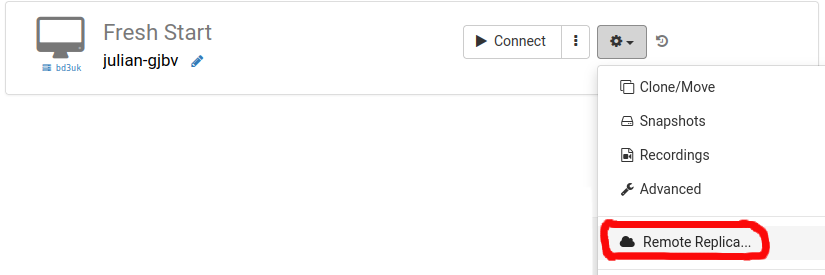
Select the data center you'd like to utilize for the Remote Replica—typically a different one from your current machine. You might opt for an alternative data center, or even one situated in another country like Indonesia.
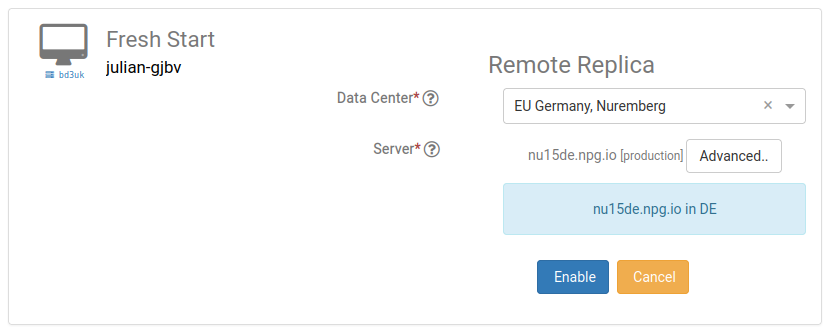
The Remote Replica desktop is now being set up. The time required depends on the replica's distance and the desktop's size. Meanwhile, you can keep working on your original machine as needed.
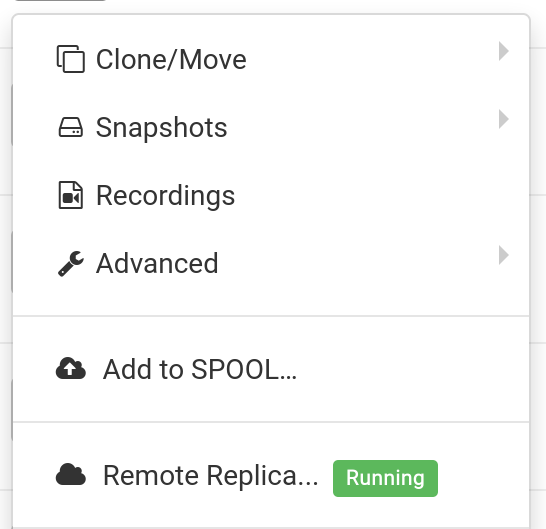
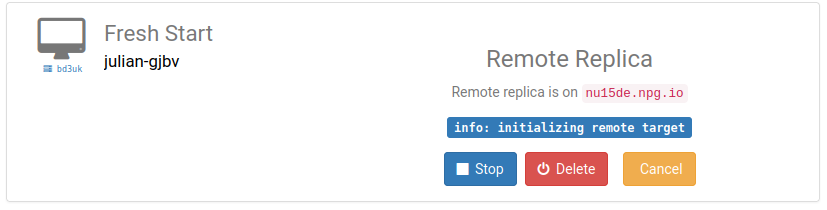
Restoring a Remote Replica
Should you find yourself unable to access your Fresh Start Desktop for any reason, you can opt to restore the Remote Replica that was configured.
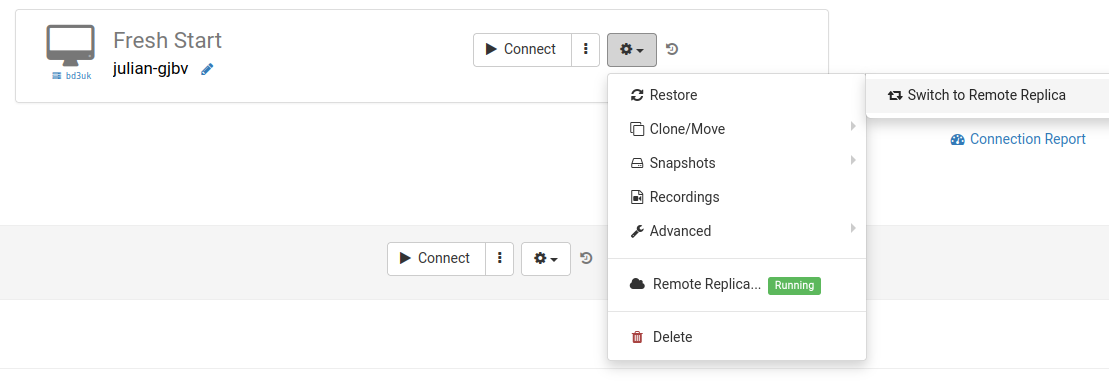
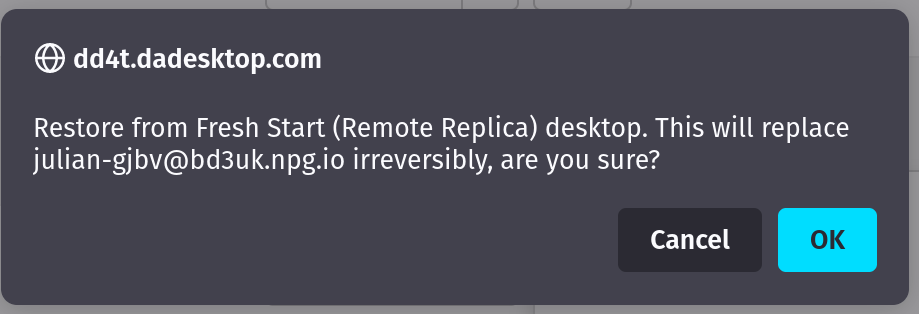
After using the Remote Replica, you cannot revert to the original Desktop. This is irrelevant, as the replica is an exact clone.
However, note that once you switch to your Remote Replica desktop, the replication process halts. To create another replica, you'll need to go through the initial setup steps again.


Second scenario: Using Replica for Fresh Start in a different geographic region to minimize connection latency
Remote Replica proves extremely handy when you need a copy of your Fresh Start machine closer to your geographical location while you're developing course content on it. For instance, a trainer resides in Germany, but the course is being delivered in South Africa. This is a frequent scenario with DaDesktop, as the system simplifies managing such courses.
In this situation, you wouldn't want your course-creation Fresh Start Desktop located on a South African server, as the connection latency would be excessive. So, you set up a Remote Replica of your Desktop in Europe to keep latency low. The replica will synchronize with all your edits.
Once your work on the Fresh Start Desktop is finished, restore the Remote Replica to the Trainer machine in South Africa for quick distribution to the Trainer and Participants.