Setting Up Multiple Course Dates
When creating a course, you can schedule it across multiple dates. This enables you to fine-tune when the course is open to participants, helping you better align with your timetable.
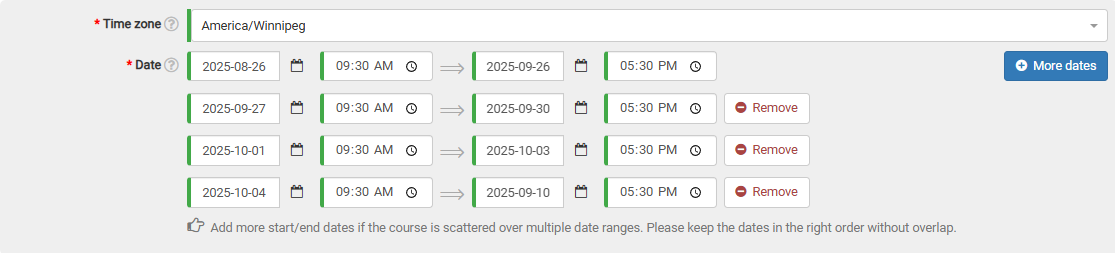
In the date section of the course form, click the "More dates" button. You'll then notice a new line for choosing a date appear.

Add as many date ranges as you need, just make sure they don't overlap.
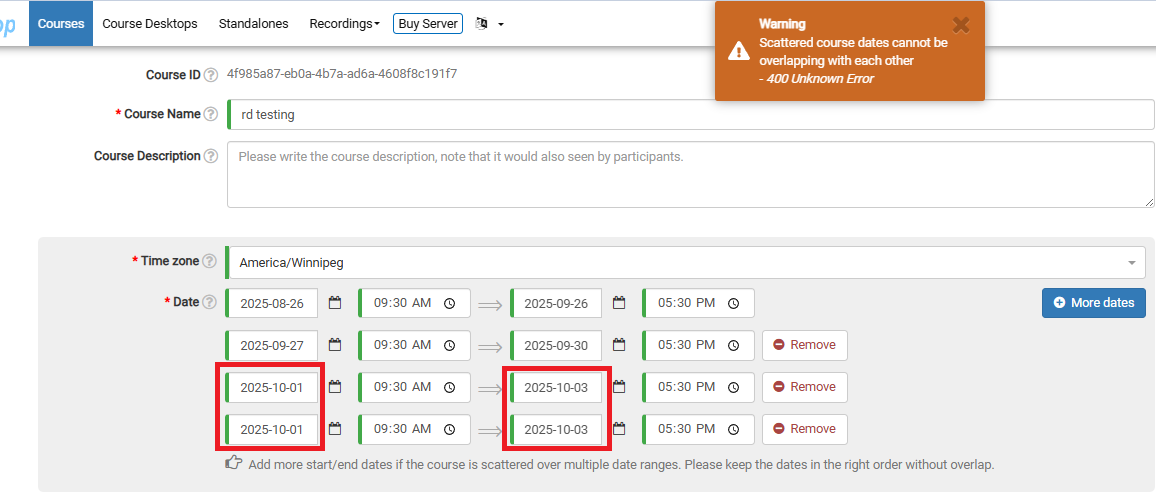
If they do, a warning will pop up at the top of the page when you try to submit the course. In the example below, I've accidentally selected the same date range twice.