
Setting Up Standalone Desktops
To set up a new Standalone Desktop:
- Select 'Standalones' from the top menu bar
- Choose 'Create New Standalone' Desktop
- A dialog box will appear, as shown in the image below
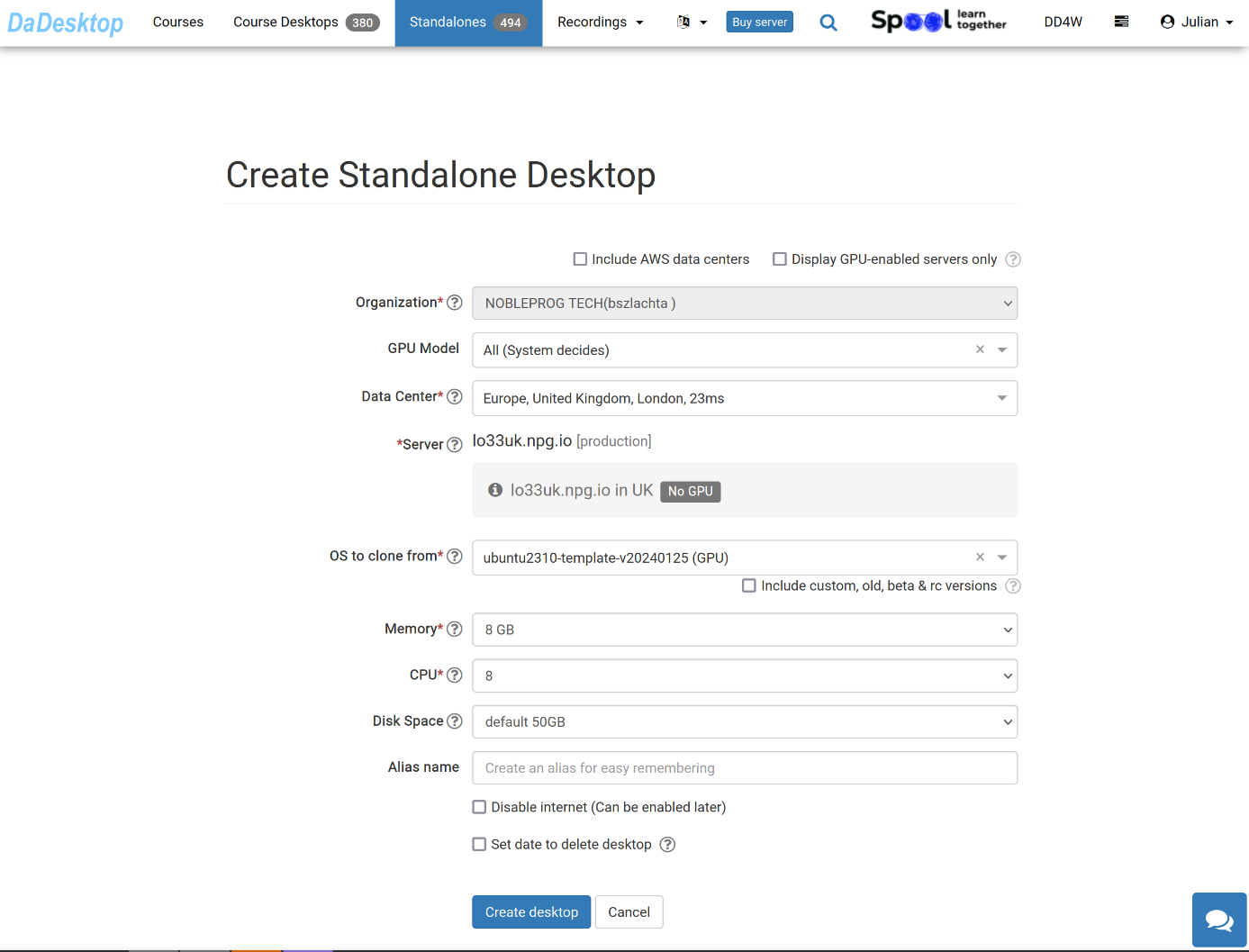
Here’s a breakdown of each field:
-
GPU Model
Select a GPU and its type if needed. Checking the 'Display GPU enabled servers' option will filter the list to show only servers with GPUs -
Datacentre / Server
Pick the data centre region and server that is geographically closest to your location in Indonesia -
OS to clone from
You have various operating system options.
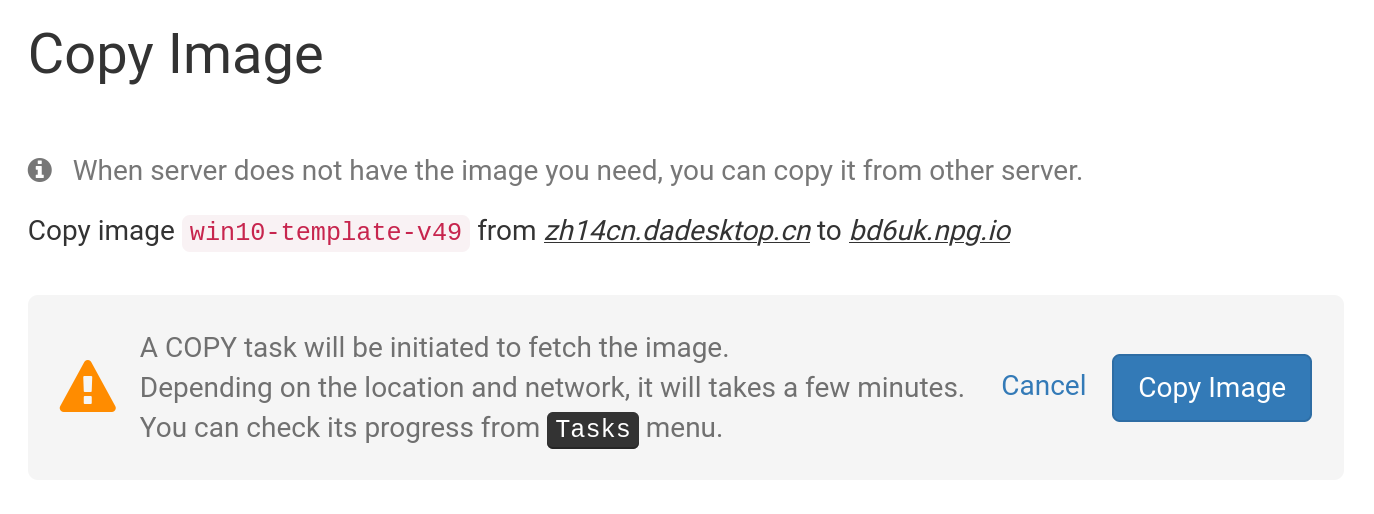
If you see 'Copy Required' next to a template, it means that template needs to be copied to the selected server before use. Note that typically only Windows operating systems might involve additional charges. -
Include Custom, RC, and Old Versions
DaDesktop regularly updates OS templates. However, if you encounter issues with the newest one, switching to an older version can help.
-
Memory
Set the memory cap for the desktop. Keep in mind that you’re restricted by the server's resources by default. Each server has its own memory ceiling. To request an increase, reach out via our Support Chat. -
Label
Enter an alias if you’d like a simpler name for your standalone desktop.
Selecting the OS Template to Clone
You have several choices when picking an operating system template.
Options include Windows and multiple Linux distributions like Ubuntu, Debian, AlmaLinux, and more.
Pre-built templates are usually marked with a version number like V51.
Alternatively, you can now build completely up-to-date Linux templates from source. The 'Build New' Linux templates use a different build system that pulls from Linux sources and applies a script for essential DaDesktop customizations. As a result, the template is always current, secure, and simpler to deploy and maintain.
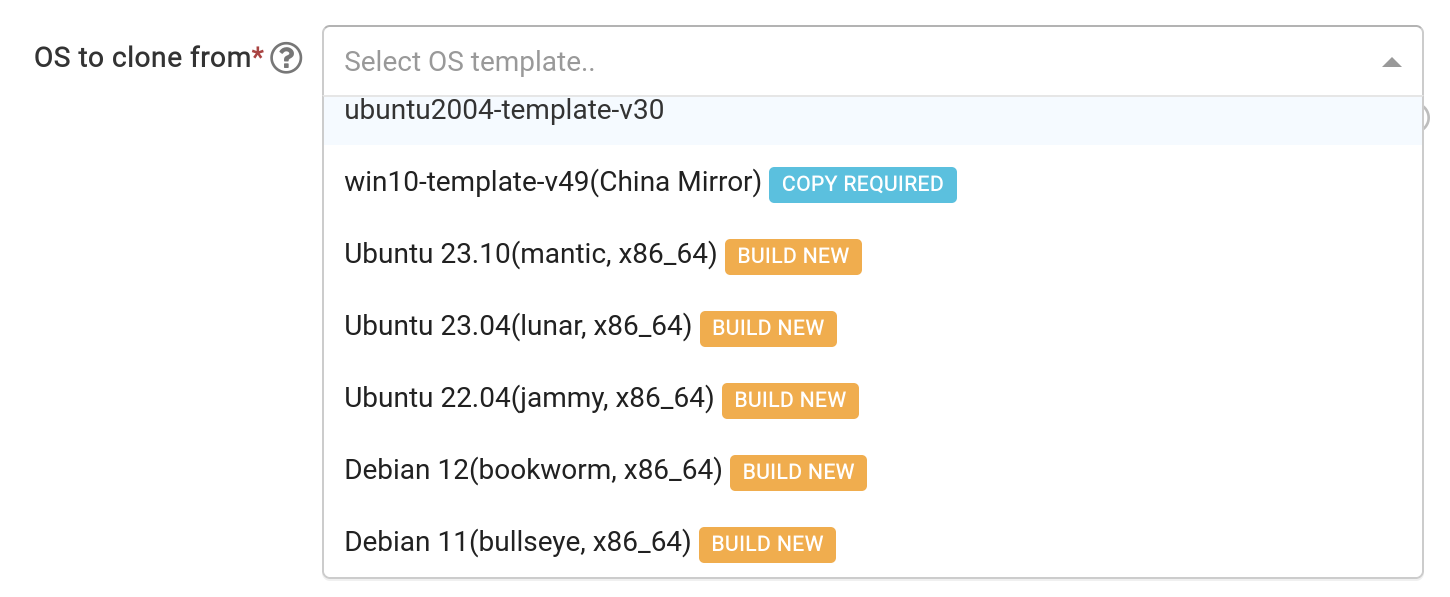
Building the OS Template
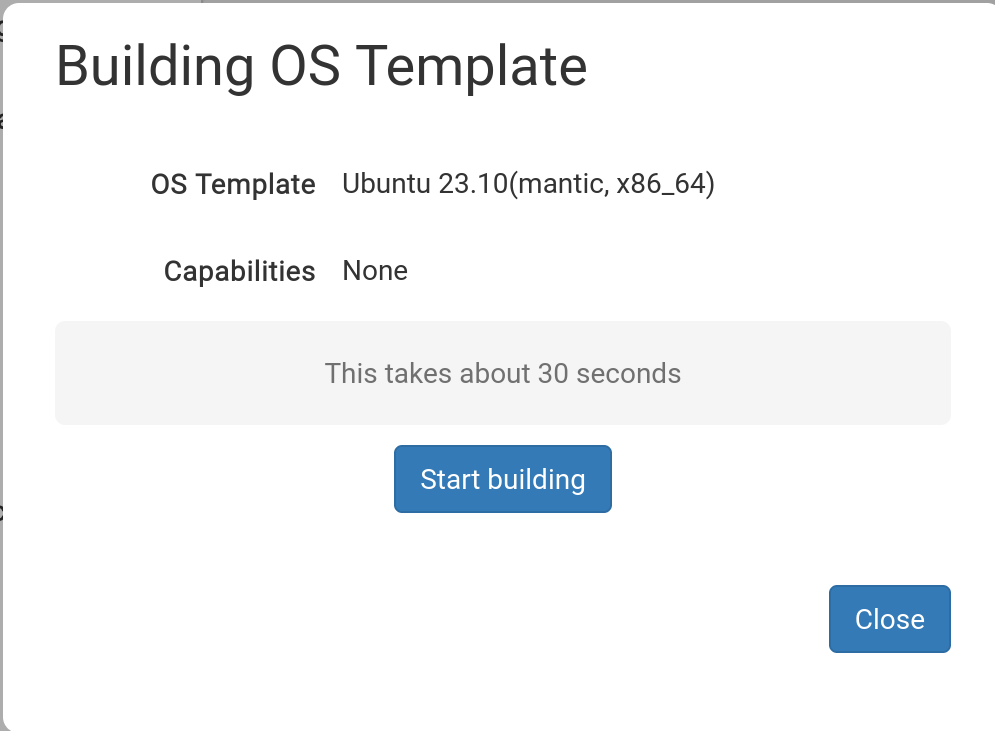
Once you've selected the desired template, a pop-up like this will appear.
Click 'Start Building'
The system will now build your standalone. Note that the process might exceed 30 seconds; if it seems stuck, be patient and give it more time.
Built Template Now Ready

Once the template is built, you can adjust any settings if needed, then click 'Save and Create Desktop'.
Your standalone desktop is now being created. This usually takes just a few moments—far quicker than building the template.
Your new standalone is ready. In the example shown, it’s named 'julian-6iqm', but you could have assigned a more descriptive label if desired.
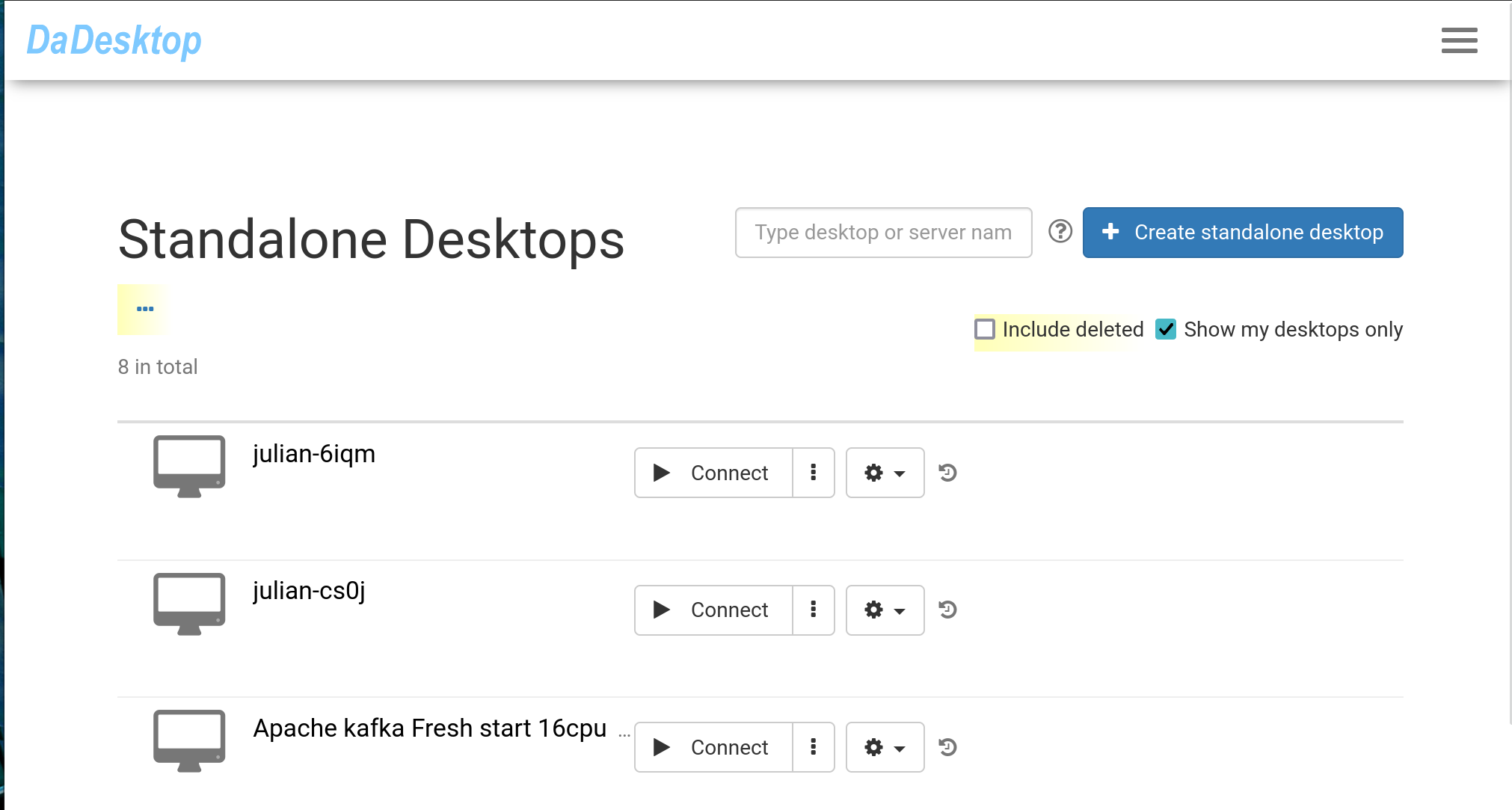
Click 'Connect' to launch and connect to the standalone desktop.