
Oracle Server Problems and Their Solutions
The vast majority of applications run without a hitch after being set up on a Fresh Start machine with DaDesktop (DD). However, a small number of programs may behave unexpectedly because of the cloning mechanism, necessitating a few extra configuration steps to restore standard operation.
System Configuration
-
Oracle Database 19c (comparable behavior is expected with other versions)
- Deployed via a Windows 10 template
Fresh Start Correction Guidelines
-
This guide outlines a generic method for resolving the application within Fresh Start. The specific steps may differ based on your particular configuration.
-
Summary – The suggested fix for Fresh Start is detailed below. Since the original hostname becomes obsolete after cloning (the machine receives a new name), it is advisable to switch to the loopback address 127.0.0.1 instead of retaining the old hostname. Furthermore, any surplus database Listeners that clutter the configuration should be removed, as demonstrated in the subsequent steps.
Resolution Steps
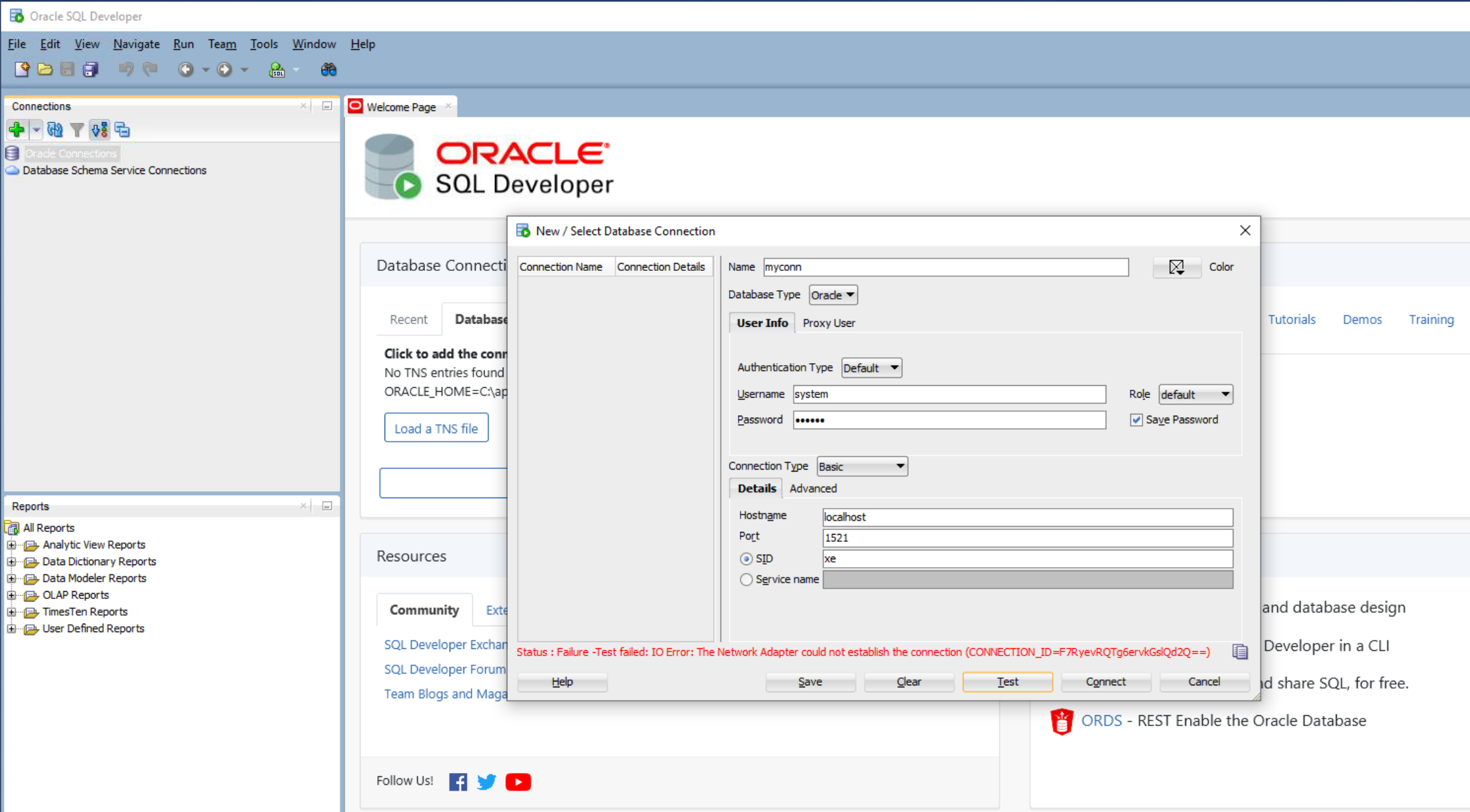
1. The image below shows a network connectivity failure when attempting to access the database through Oracle SQL Developer.
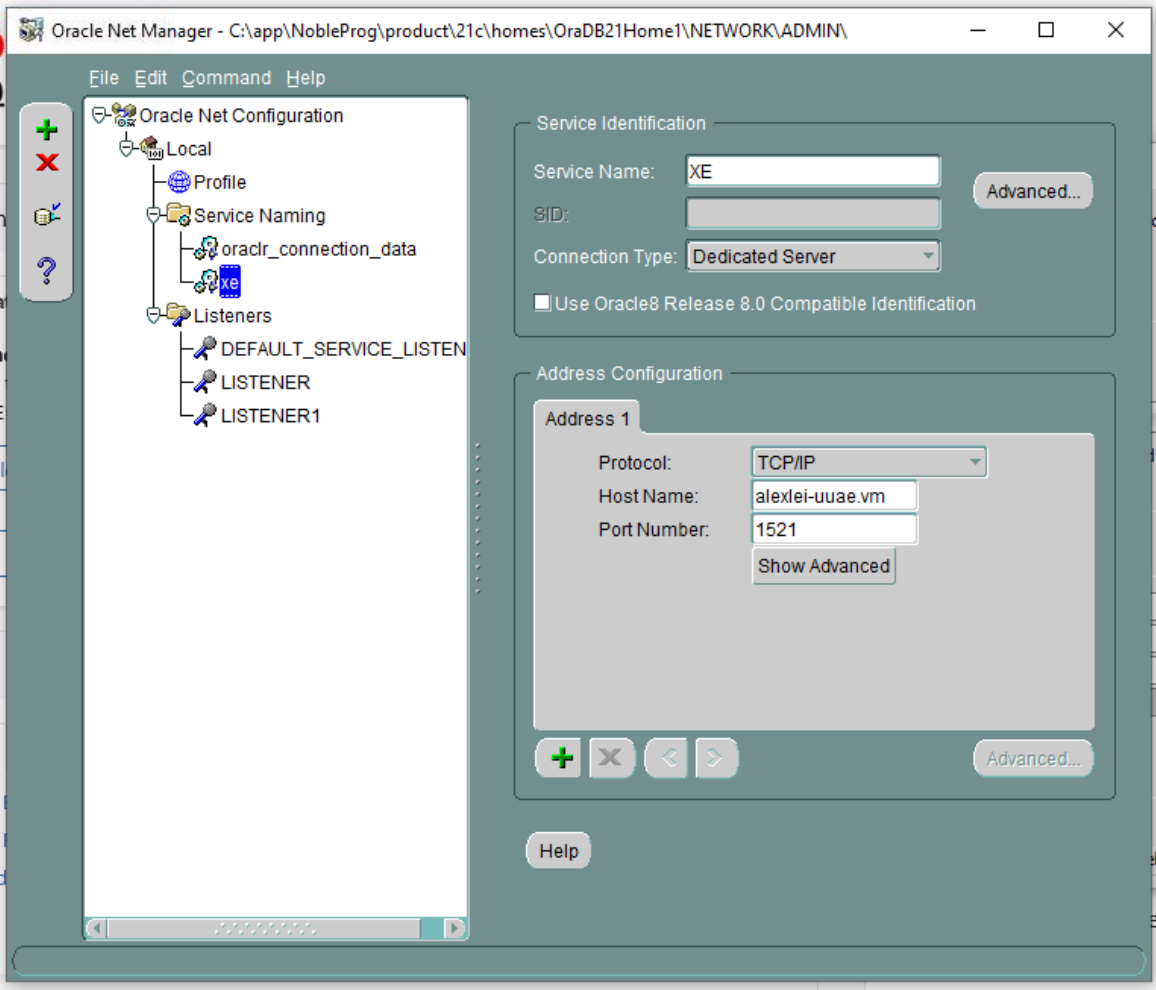
2. Launch the Oracle Net Manager application.
The XE service details appear, displaying the original host information (in this example, alexei-uuae.vm).
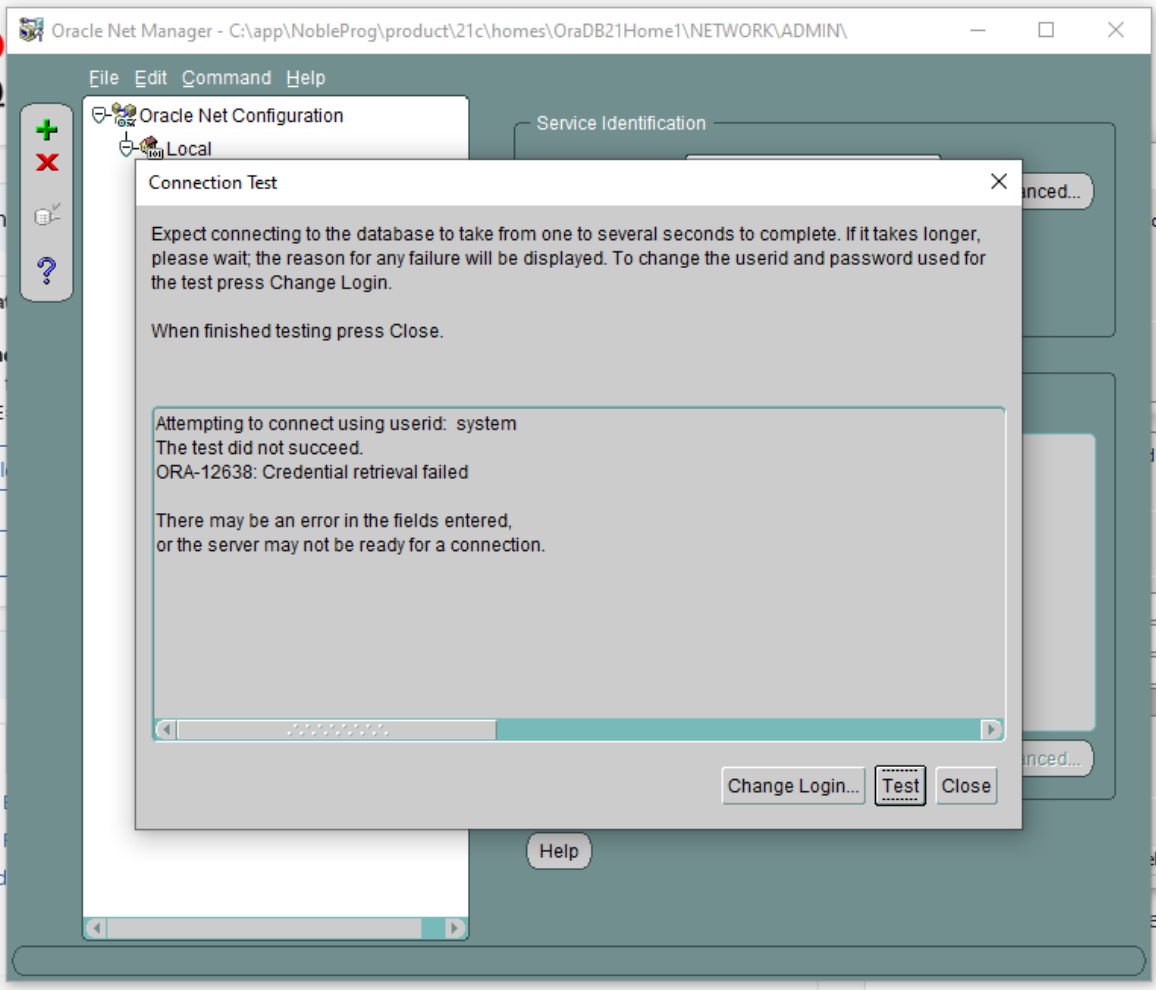
3. The connection test fails after entering the user ID “system” and the password.
4. In Oracle Net Manager, navigate to Listening Locations and then Listener. The host details reveal the original hostname “alexei-uue.vm,” which will be modified.
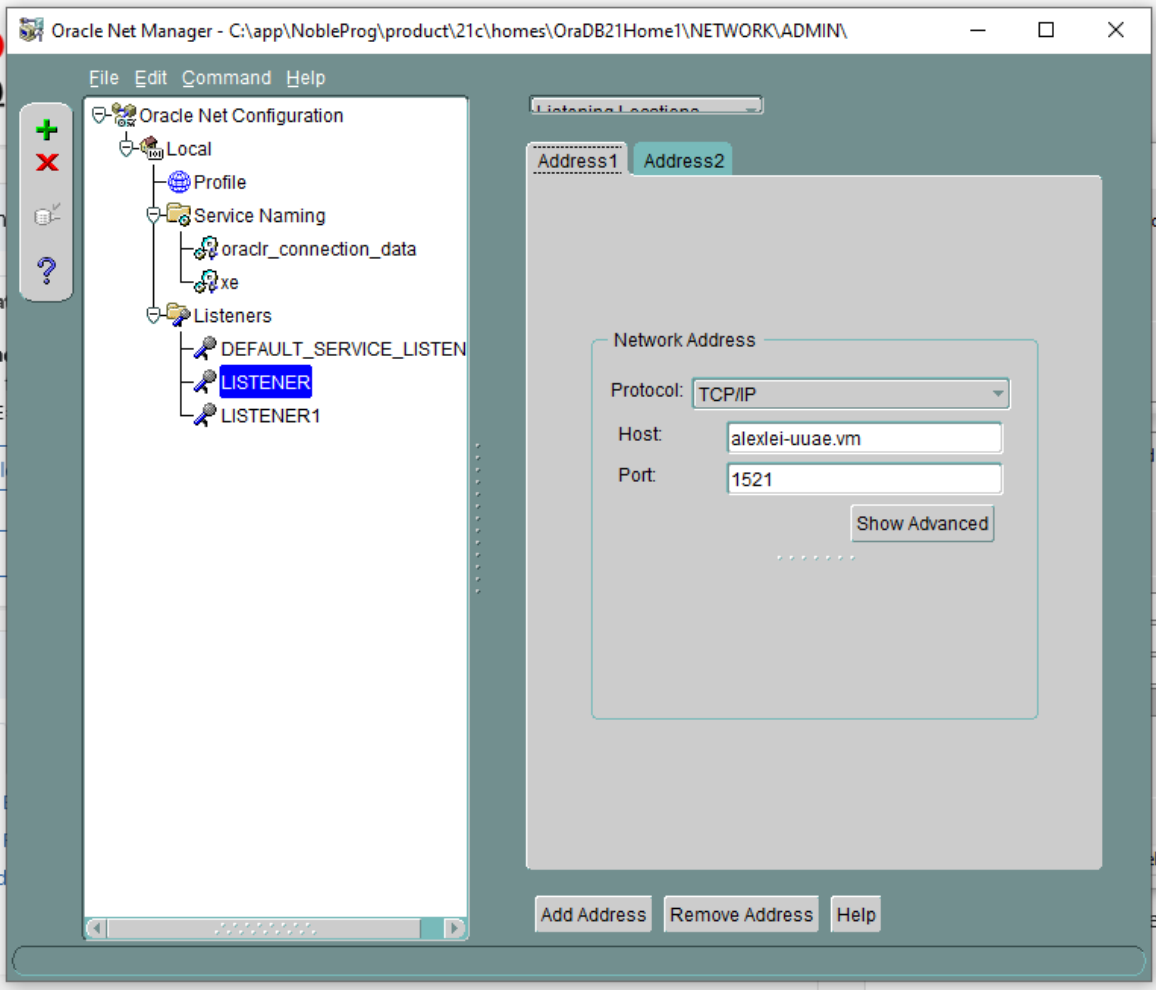
5. No databases are shown as being configured to work with LISTENER1. Examine any Listeners that lack database service configurations and delete them if found.
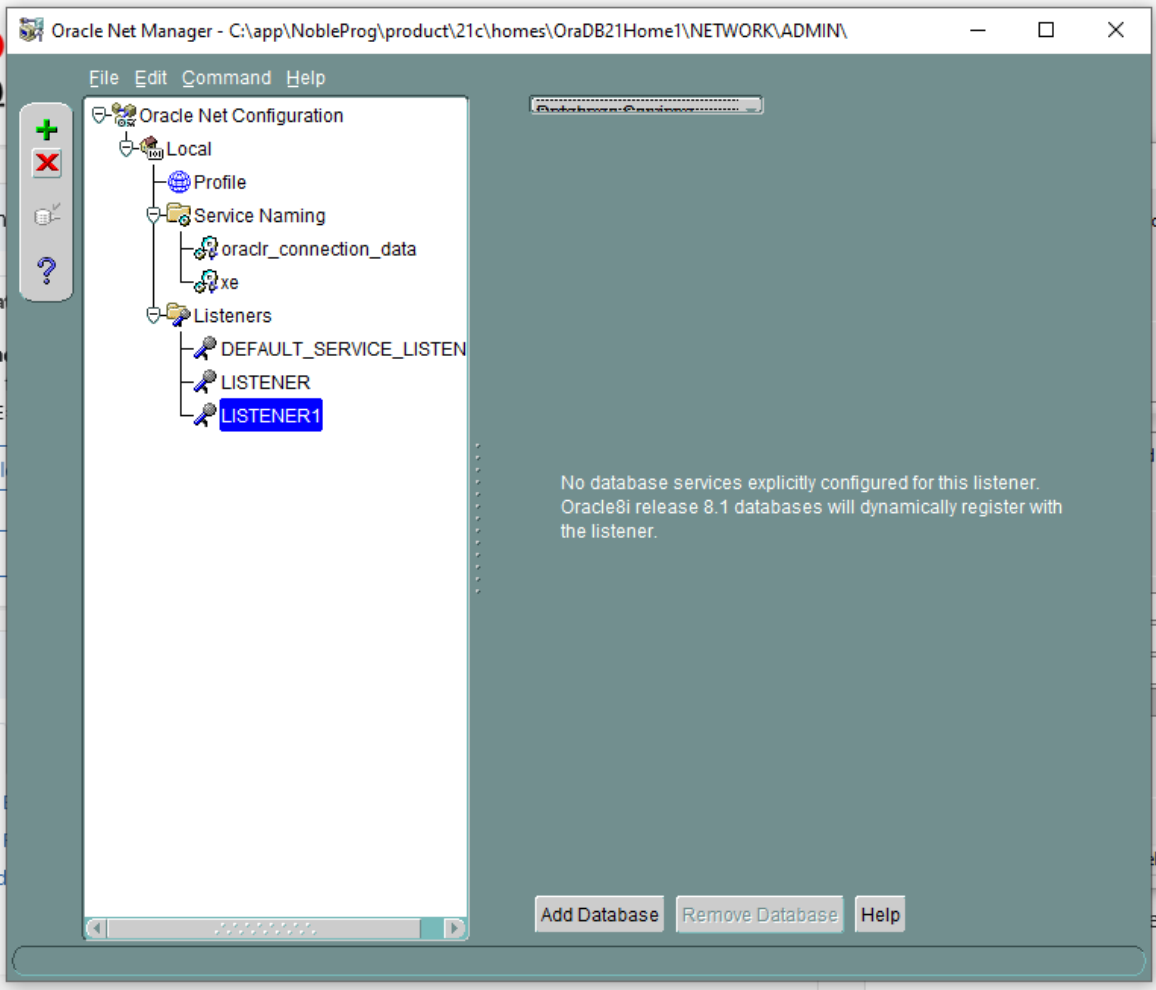
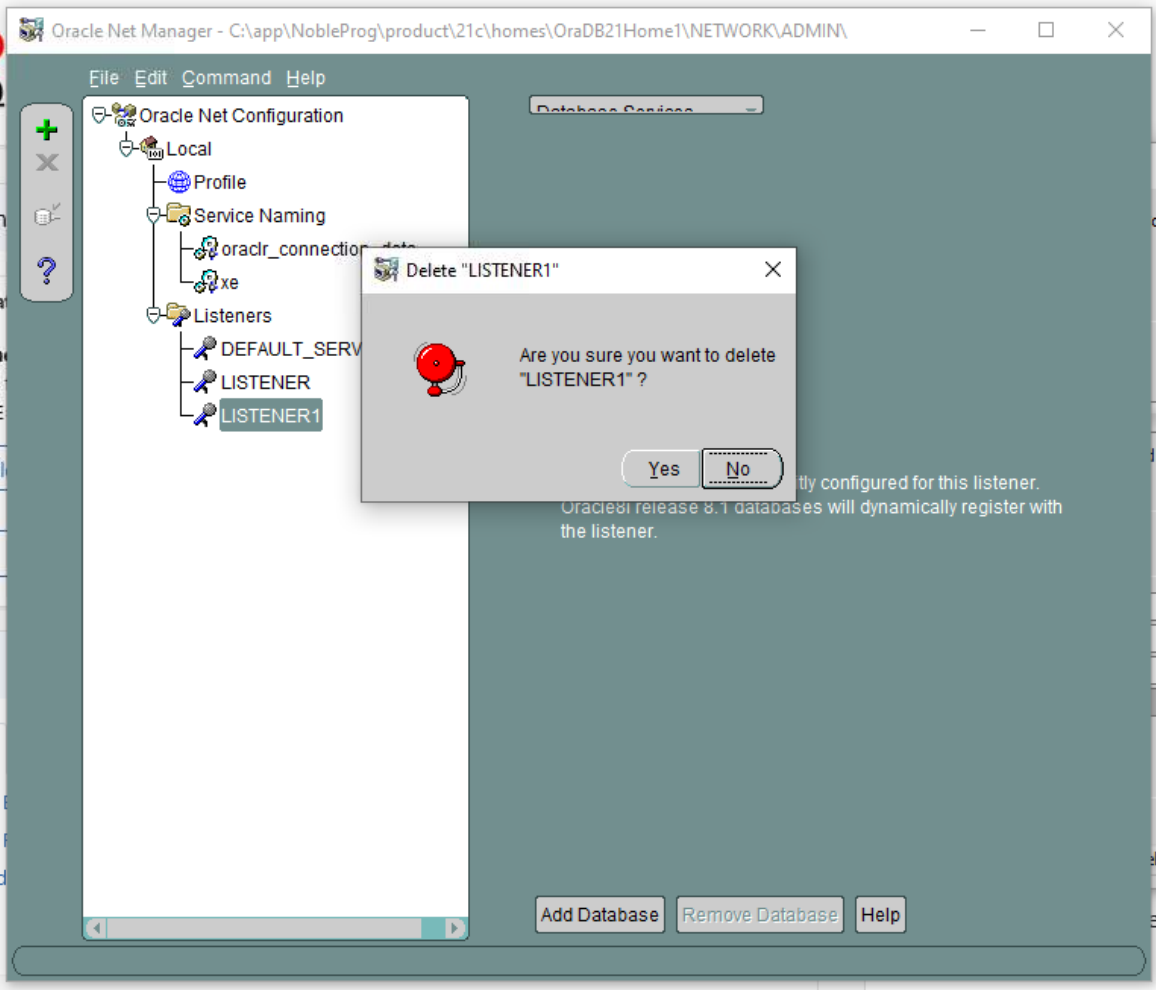
6. Consequently, remove LISTENER1 and confirm the action. NB: This illustrates what occurred during our own setup; your case may differ, but it is provided here as an example.
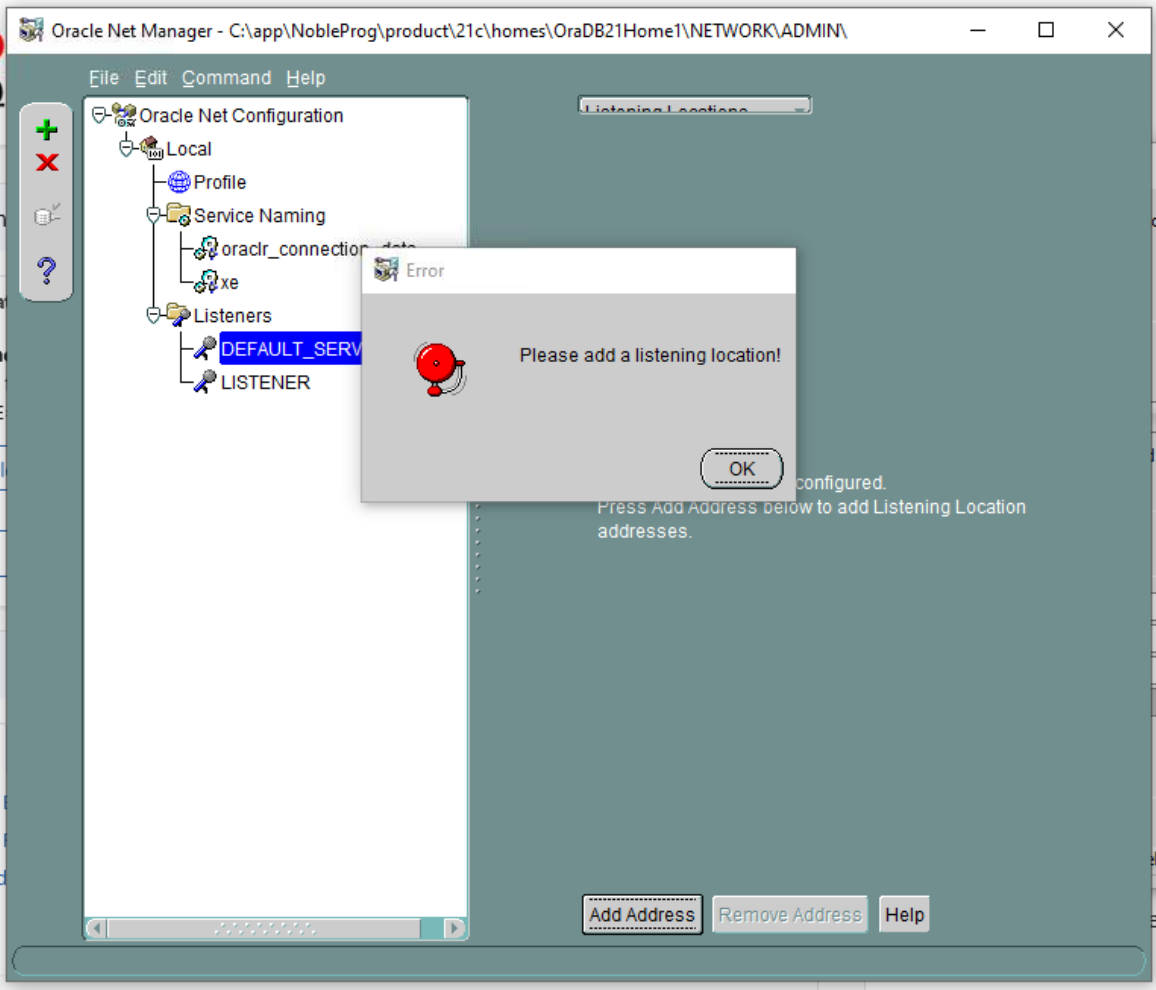
7. DEFAULT SERVER LISTENER – Check each Listener individually. In this scenario, no listening location is present.
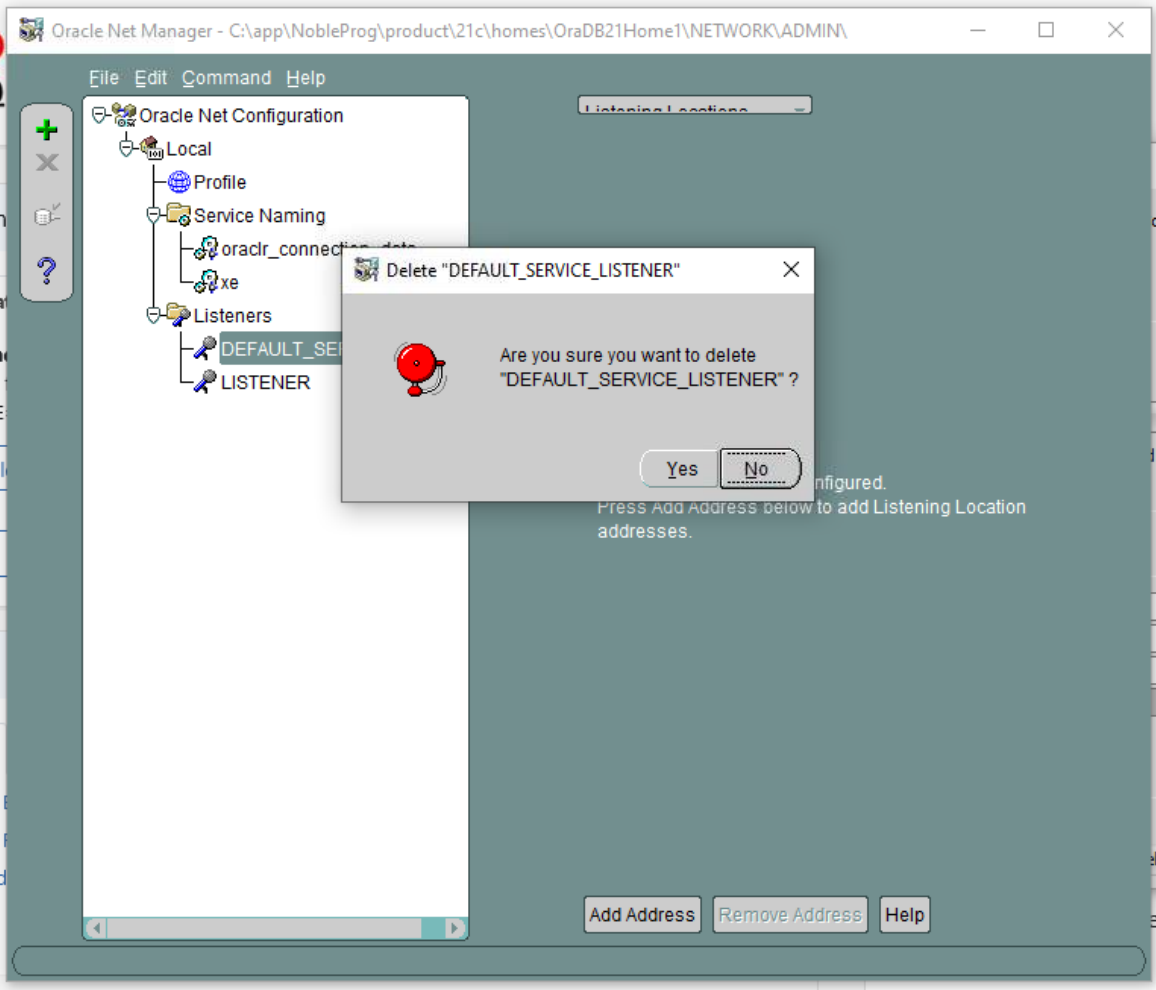
8. Therefore, delete the DEFAULT SERVER LISTENER.
9. On the remaining LISTENER, the existing VM hostname is visible and must be changed because it will be altered during cloning.
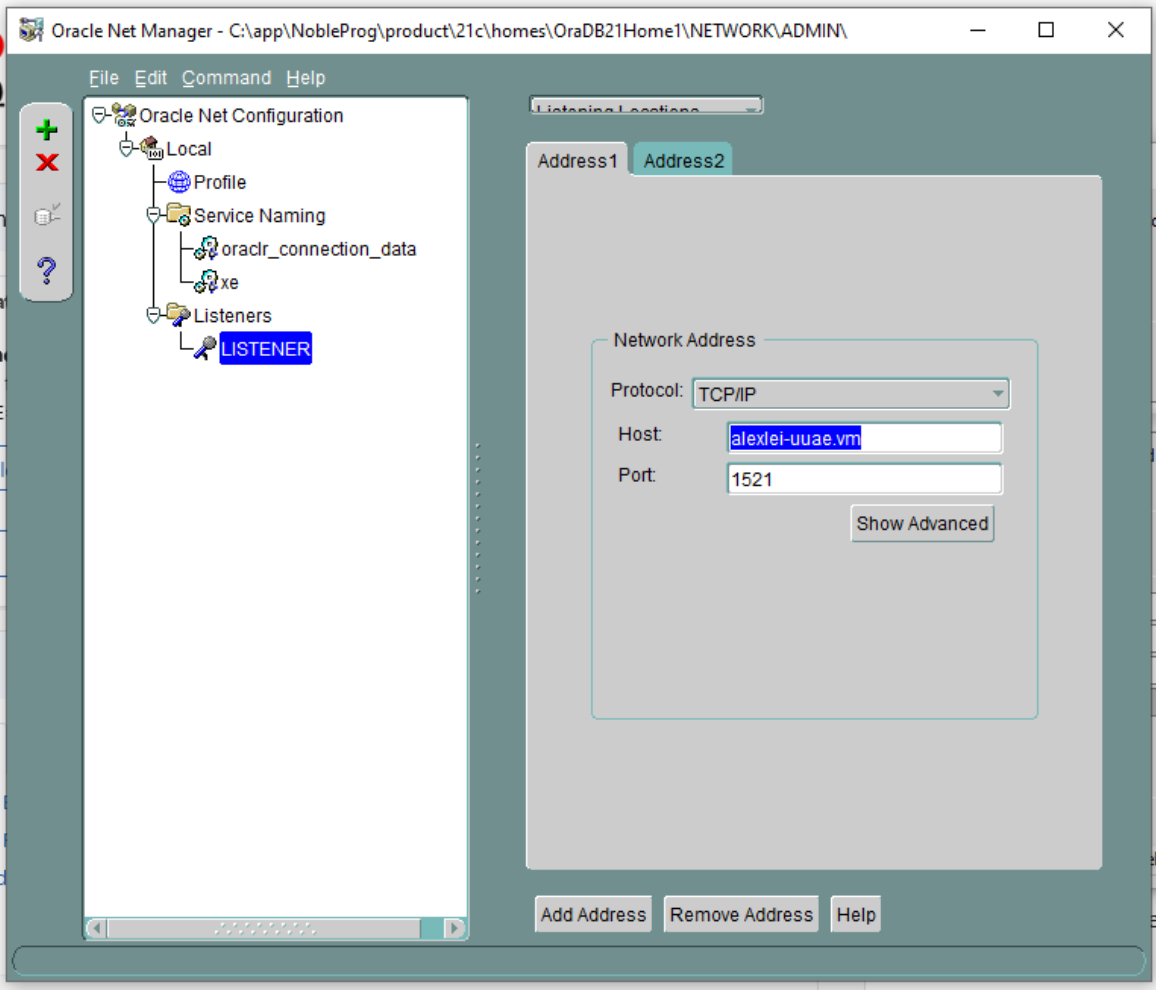
10. Replace the hostname (in our case “alexi.uuae.vm”) with 127.0.0.1, while keeping the port unchanged.
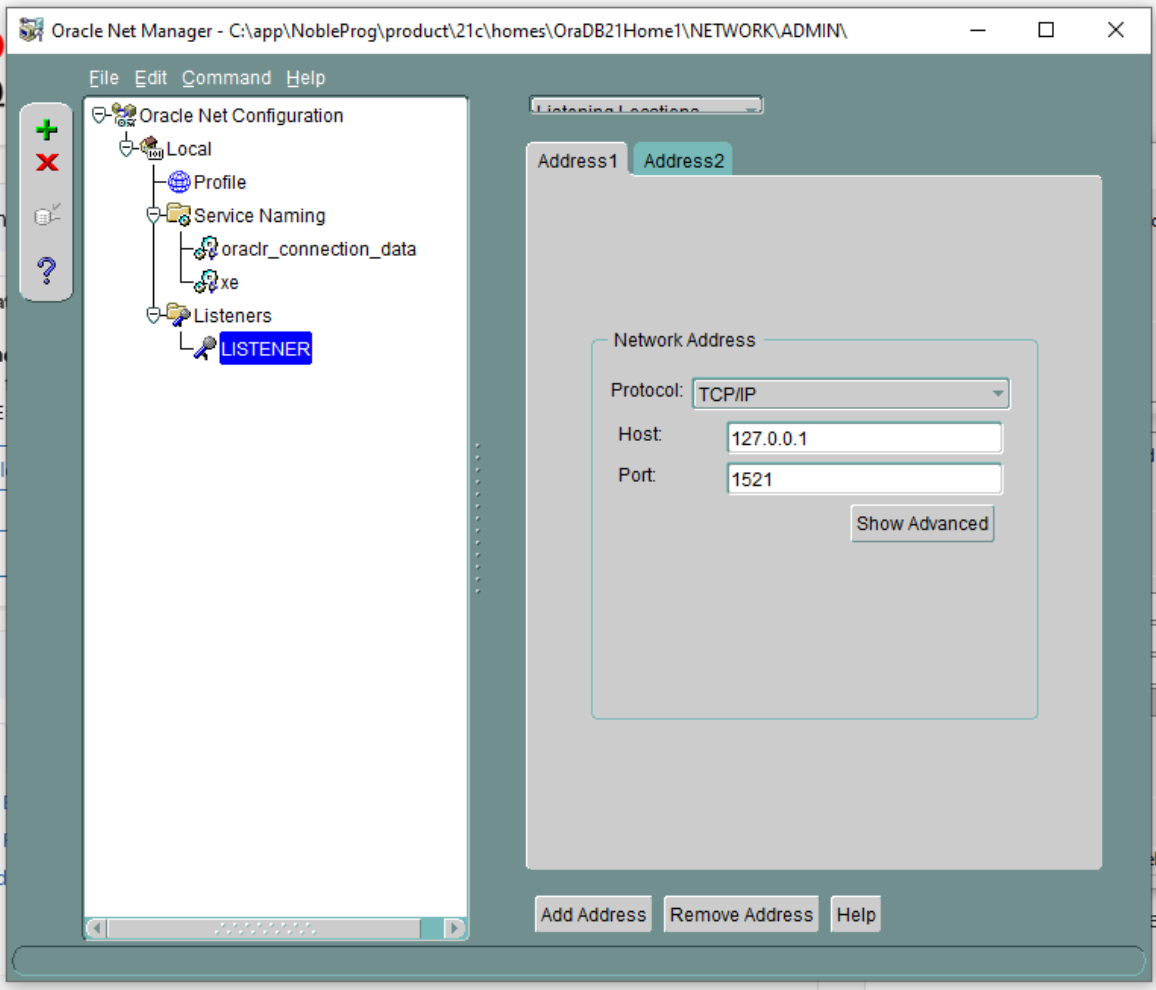
Now configure the existing database.
11. Set the SID to XE and the Global Database Name to xe.local.
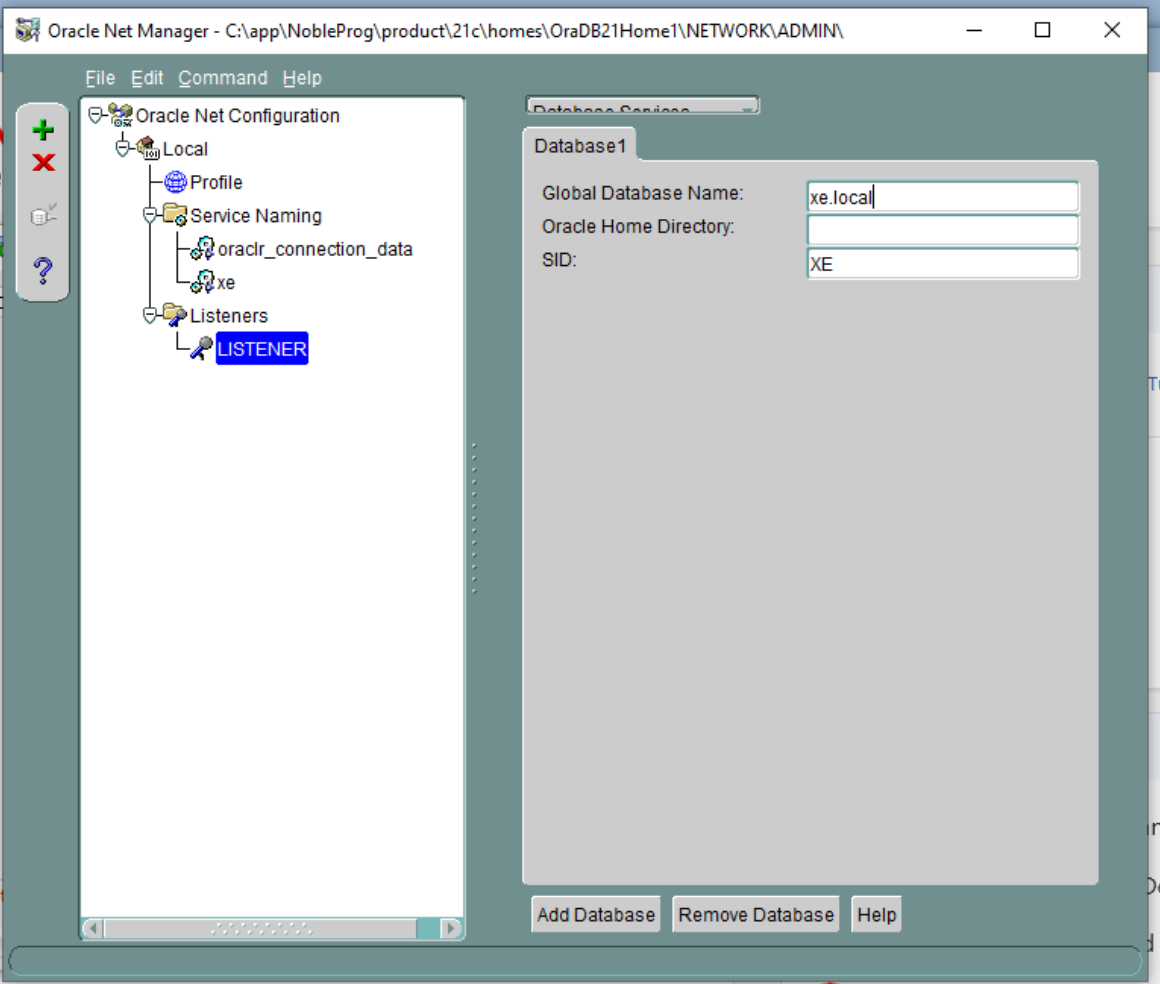
12. Save the network configuration and close the application.
13. Open a command prompt to restart the listener service.
Execute “lsnrctl status”, then “lsnrctl stop”.
Follow with “lsnrctl start”.
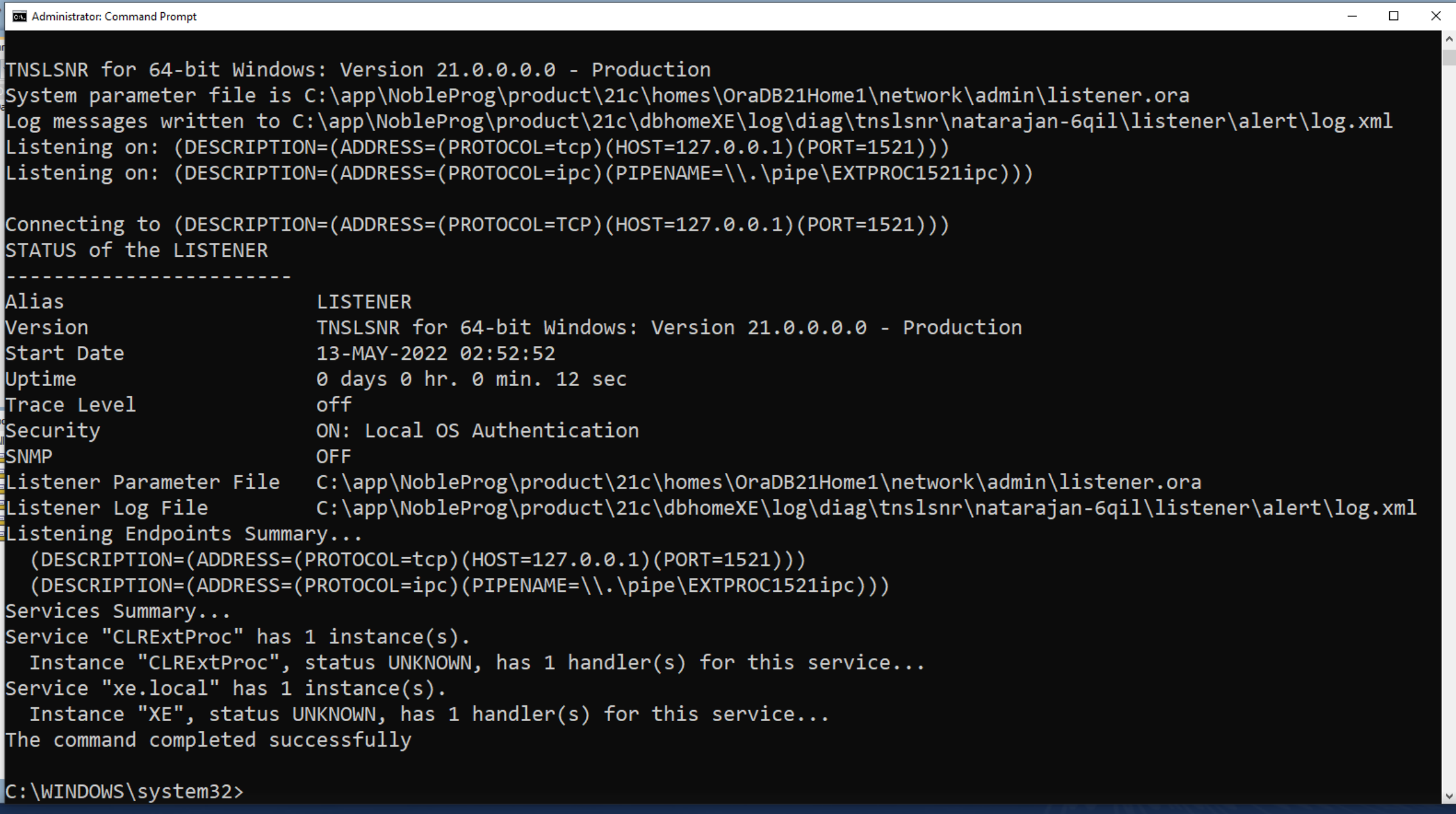
Reopen Oracle Net Manager.
14. Delete “alexei-vm” from the Service Naming > xe section.
15. Change the host to 127.0.0.1.
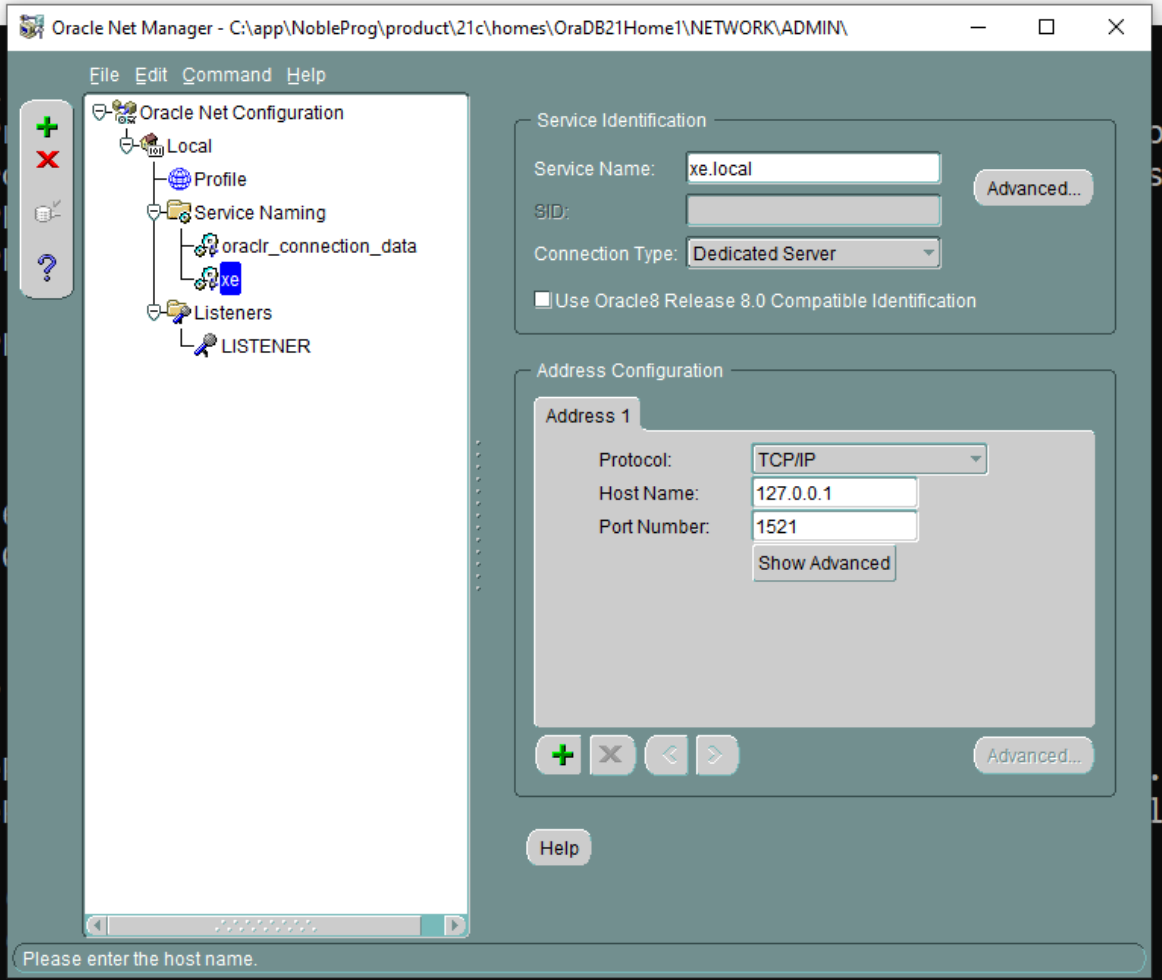
16. Save the network connection.
17. Perform a connection test. Click the small button in the image below to launch the Connection Test.
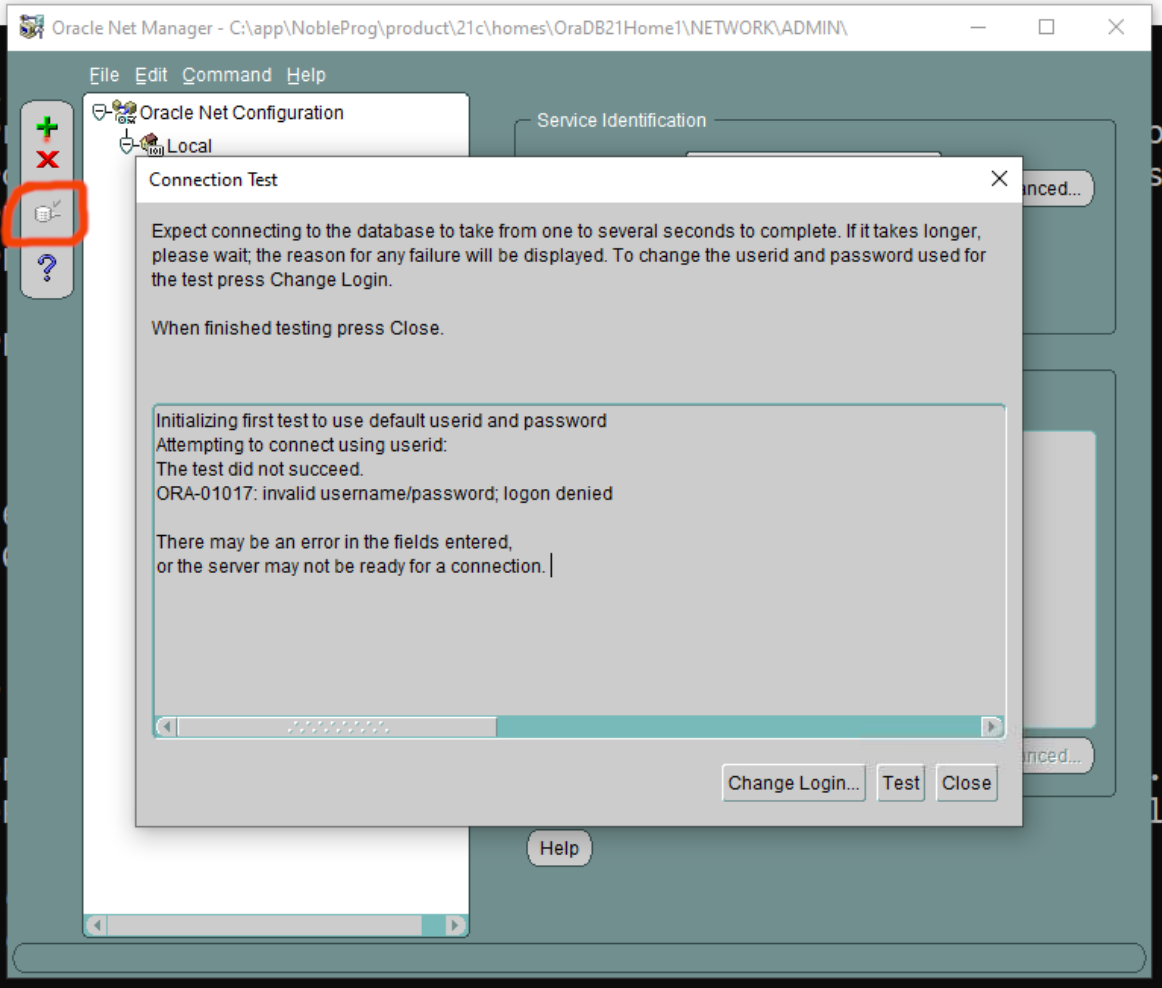
18. Adjust the login credentials: change the username to “system” and provide the appropriate password.
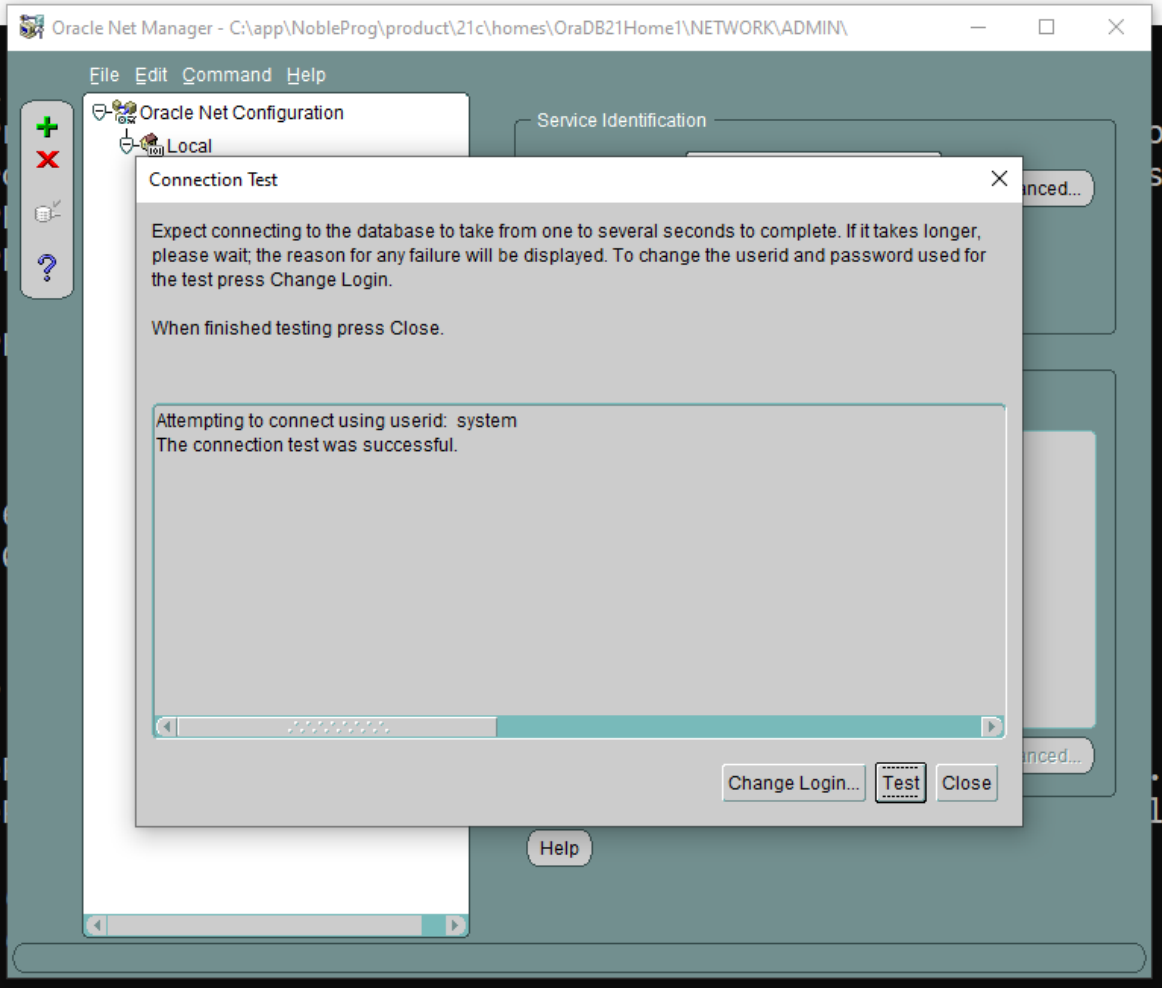
Save the network configuration if necessary.
19. Return to the main Oracle SQL Developer application and run the connection test again.
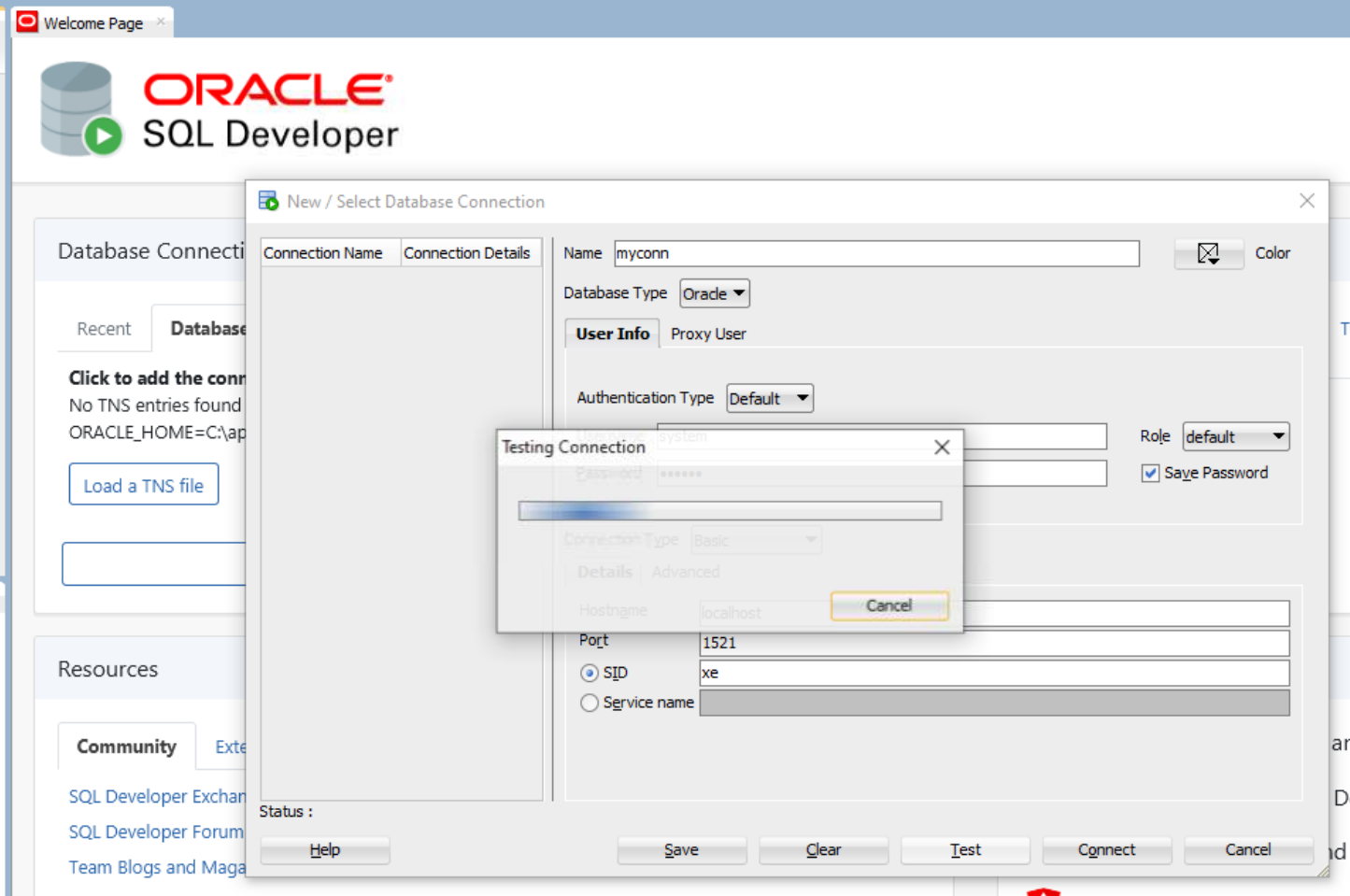
20. Upon a successful connection, go to the Connections panel on the left, expand Oracle Connections, and confirm that the database tables are displayed as expected.
21. Continue with any further FreshStart machine configuration and then clone the FreshStart instances to the trainer’s and participants’ machines.
The Oracle Database server should now function correctly on all trainers’ and participants’ machines.
If you still encounter difficulties, reach out to DaDesktop Support via the chat app, and we will be pleased to assist.